
Create a clean photo copy
- Make the photo available locally. If checking the original matters, obtain an original export from your photo provider.
- Open MetaQuiet and choose Photos & videos or Browse Files. On Android, use Browse Files to inspect location data that the photo picker may hide.
- Review the readable camera, date and location fields, along with the supported metadata blocks.
- Choose Create clean copy. MetaQuiet removes supported metadata and scans the output again before presenting the result.
- Open the clean copy to check its appearance. Save it or share it from the result screen, taking care to use the copy rather than the original.
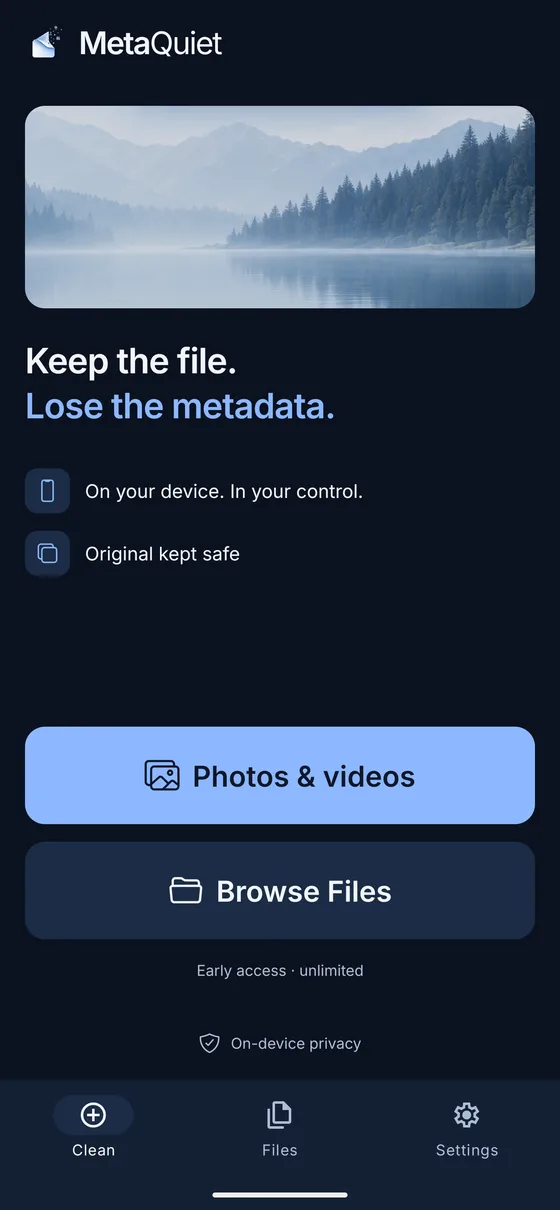
What EXIF removal covers
EXIF can hold camera and lens details, exposure settings, capture dates and GPS coordinates. A file may also carry XMP, comments or other descriptive blocks. MetaQuiet targets supported metadata structures for the detected format, rather than treating every image as the same kind of file.
Readable fields help you understand what the selected copy contains. The block report describes a different level of detail: one EXIF block may hold several values. A small block count does not mean there was only a small amount of descriptive information.
Cleaning removes the supported fields together. MetaQuiet is not a metadata editor, so this workflow does not let you replace the camera name or remove only the capture date while choosing which other supported fields to keep.
Choose the right source on Android
Android’s photo picker can hide GPS data before handing the photo to MetaQuiet. MetaQuiet does not request media location access. The absence of a location in that selected copy therefore does not establish that the original photo lacks coordinates.
Use Browse Files with a locally saved original export when checking stored GPS. A photo or file provider can still supply an adjusted version, so the inspection always describes the bytes received. Selecting the same visible picture through two providers can produce different metadata results.
What stays in the picture
MetaQuiet does not re-encode the image during supported metadata cleaning. Image content and color information needed for display remain. A minimal orientation record may also remain so rotated or mirrored photos continue to appear correctly.
This does not hide anything visible. A face, street sign, reflection or address on a parcel remains in the clean copy. Review the image itself before sharing, especially if removing GPS was only one part of your privacy concern.
Formats, checks and storage
Supported photo formats include JPEG, PNG, WebP, GIF, supported still HEIC/HEIF and classic TIFF. Removal scope differs by format. RAW, AVIF and BigTIFF are unsupported, and an accepted extension does not guarantee that every variant can be processed. The file limit is 25 MB.
For an additional check, save the output and select that saved file through Browse Files. A photo library or receiving app may add metadata when saving, so inspect the final saved version if that distinction matters. An empty readable preview alone is not a comprehensive privacy check.
Clean copies initially live in temporary app storage. Save anything you want to keep, then use Settings > Storage to delete temporary copies. That action leaves originals and copies already exported to other destinations alone.
Common questions
Will removing EXIF lower photo quality?
Supported cleaning does not re-encode the image. Review the saved copy because a receiving photo service may process it separately.
Why is orientation still present?
Orientation can be needed for correct rotation or mirroring. It is retained as technical information while supported descriptive EXIF is removed.
Can I clean a whole album at once?
No. MetaQuiet processes one file at a time.
MetaQuiet is in testing on Android and iPhone. Join the testers to try it early.
Join the MetaQuiet testers