
Remove stored GPS from a copy
- Save an original export of the photo locally if it is currently in a photo or cloud service.
- In MetaQuiet, choose Browse Files and select the saved photo.
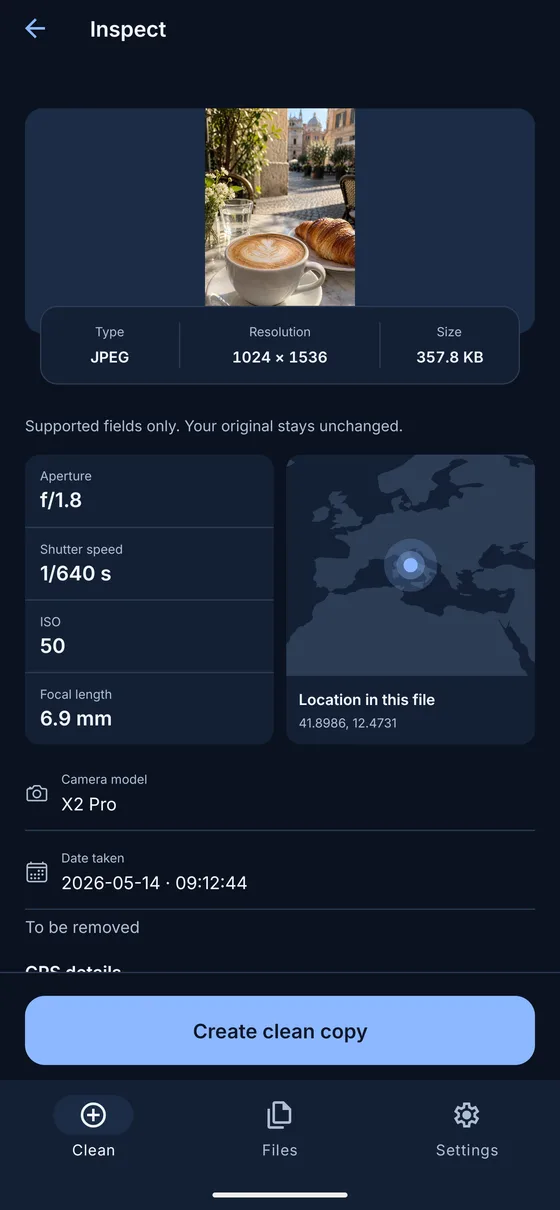
- Review the location card and any readable GPS details. Also check the supported metadata report.
- Choose Create clean copy. Supported location metadata and other supported descriptive fields are removed together.
- Save the result. Reopen that saved copy through Browse Files if you want to inspect it again, then share the copy.
You do not need to open a detailed map to remove location data. Inspection and cleaning take place on the phone. The clean copy is checked again for supported metadata before MetaQuiet presents it as ready.
Why Browse Files matters on Android
Android’s photo picker can hide GPS coordinates before passing a photo to an app without media location access. MetaQuiet does not request that access. A photo selected through Photos & videos may therefore show no readable location even when its original contains one.
That result describes the selected copy, not every version of the photo. Use Browse Files with an original export to investigate the stored data. The provider still determines which bytes it supplies, so an edited or previously shared export may already differ from the original.
No visible GPS in a picker-supplied copy is not proof that the original photo has no location metadata.
Read the location result correctly
The location card uses coordinates read from the file. Other readable GPS fields may describe altitude, GPS time or camera direction. Their presence depends on the photo. Stored coordinates are a record in the file, not confirmation of your current location or proof that the record is accurate.
The initial overview map works offline without sending coordinates to a provider. If you choose to open a detailed Apple Maps or Google Maps view, that provider receives the viewed location or area. Your photo is not uploaded for the map.
Location clues can remain in the picture
Removing GPS does not change image pixels. A house number, street sign, distinctive building or delivery label stays visible. Look at the photograph as a recipient would, including its background, before deciding that it reveals only what you intend.
MetaQuiet also keeps technical information needed for display, such as supported orientation and color data. It does not let you replace coordinates with a different location or selectively edit GPS fields. The cleaning action removes supported descriptive metadata as a group.
Check the version you actually send
Supported photo formats include JPEG, PNG, WebP, GIF, still HEIC/HEIF and classic TIFF, with different metadata coverage for each. The limit is 25 MB per file. RAW, AVIF, BigTIFF and unsupported variants cannot be cleaned by changing the filename extension.
A receiving photo library or app may add fresh metadata when saving. For a careful check, inspect the final saved file through Browse Files rather than relying only on the earlier result. A blank preview still does not establish that every possible private detail has been removed.
Keep the original for your own use and distinguish it from the clean copy. Save the output before deleting temporary copies in Settings > Storage. Clearing temporary storage does not remove GPS from your original or delete copies held elsewhere.
Common questions
Can I remove only GPS and keep all other descriptive fields?
MetaQuiet does not offer selective metadata editing. Cleaning removes the supported descriptive fields together.
Does the location card track where I am now?
No. It displays readable coordinates stored in the selected file.
Why does the original still show its location?
Cleaning creates a separate copy. The original is never overwritten.
MetaQuiet is in testing on Android and iPhone. Join the testers to try it early.
Join the MetaQuiet testers